



Introduction
Performance issues in modern React and Next.js applications rarely come from one single mistake. They are usually the result of several small decisions that compound over time: loading too much JavaScript, rendering too many DOM nodes, recalculating expensive values during render, and loading heavy UI before the user actually needs it.
In this article, I’ll walk through how I optimized a heavy dashboard page and reduced the bundle size from 622.08KB to 304.43KB.
The goal was not just to make the page “feel faster.” The goal was to understand what made the original implementation expensive, then fix those problems intentionally.
Before and After
| Route        | Compressed    | Uncompressed |
| ------------ | ------------- | ------------ |
| `/heavy`     | ~622.08KB     | ~1.48MB      |
| `/optimized` | **304.43KB**  | **804.91KB**   |
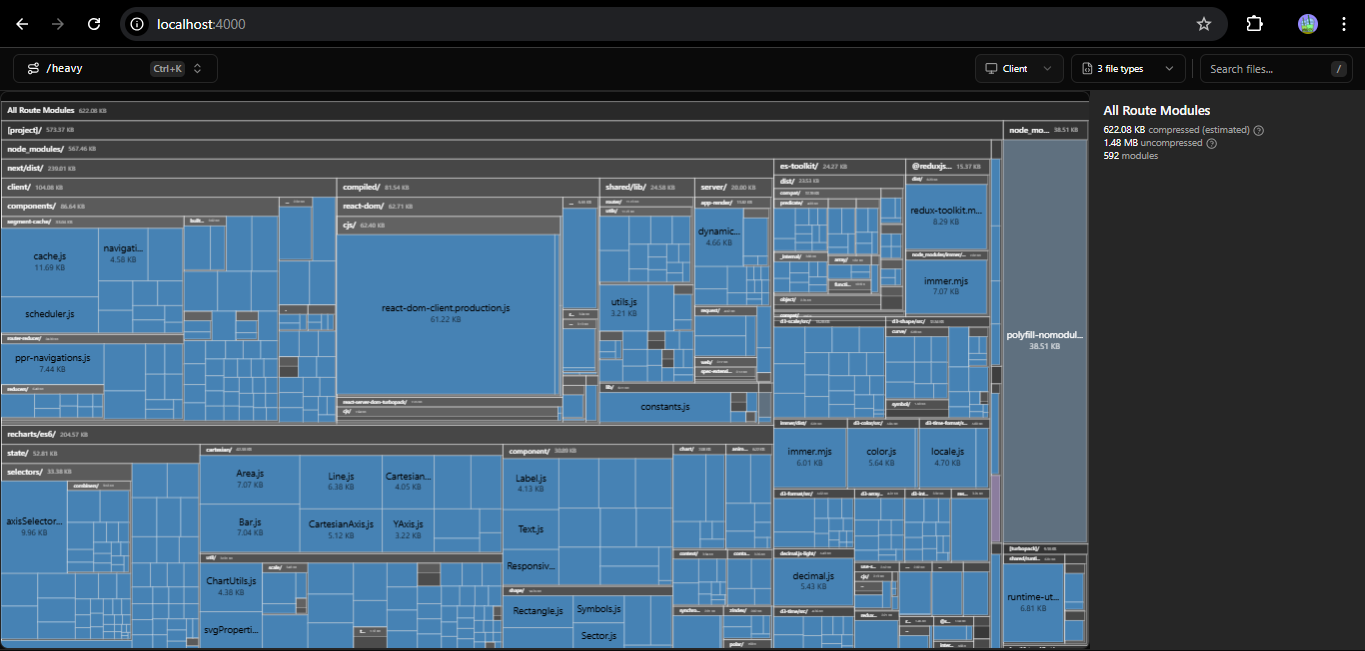 /heavy bundle size
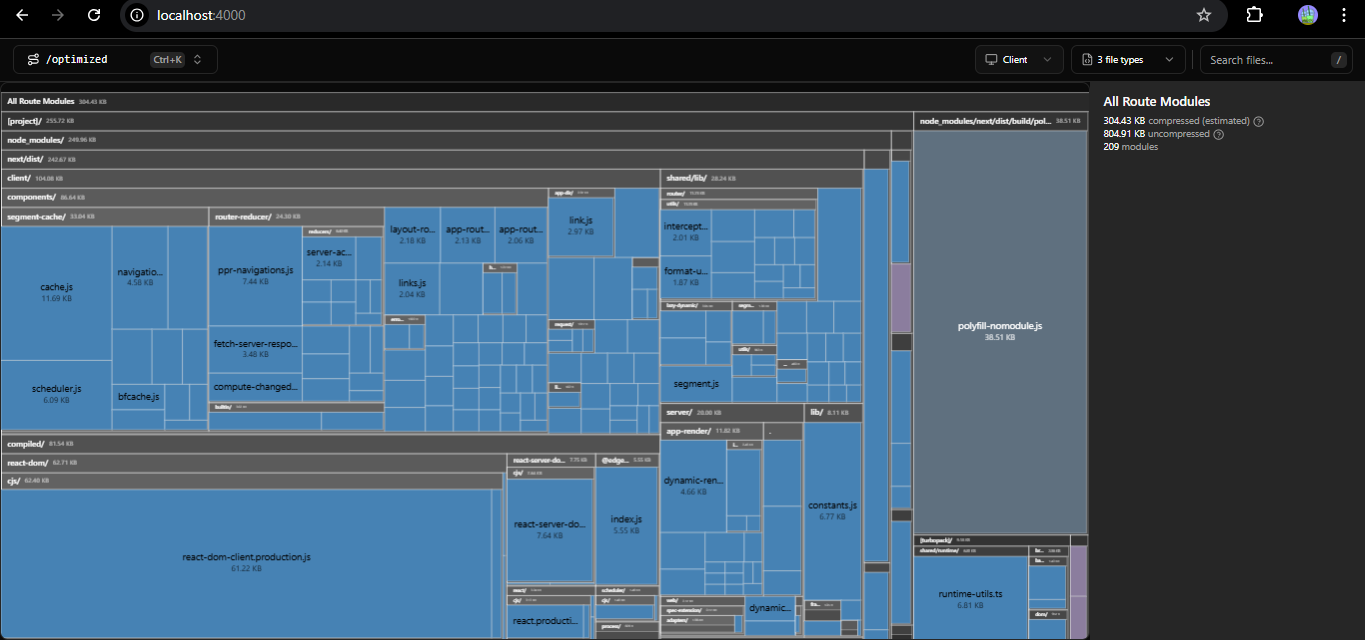 /optimized bundle size
The improvement came from changing the way the page handles rendering, computation, and bundle loading.
The heavy page followed this pattern:
Load everything upfront
Render everything immediately
Compute expensive values during render
Handle every keystroke as an expensive operation
The optimized page follows a different pattern:
Load only what is needed
Render only what is visible
Compute only when dependencies change
Delay heavy UI until the user requests it
The Heavy Dashboard
The /heavy page looked harmless at first.
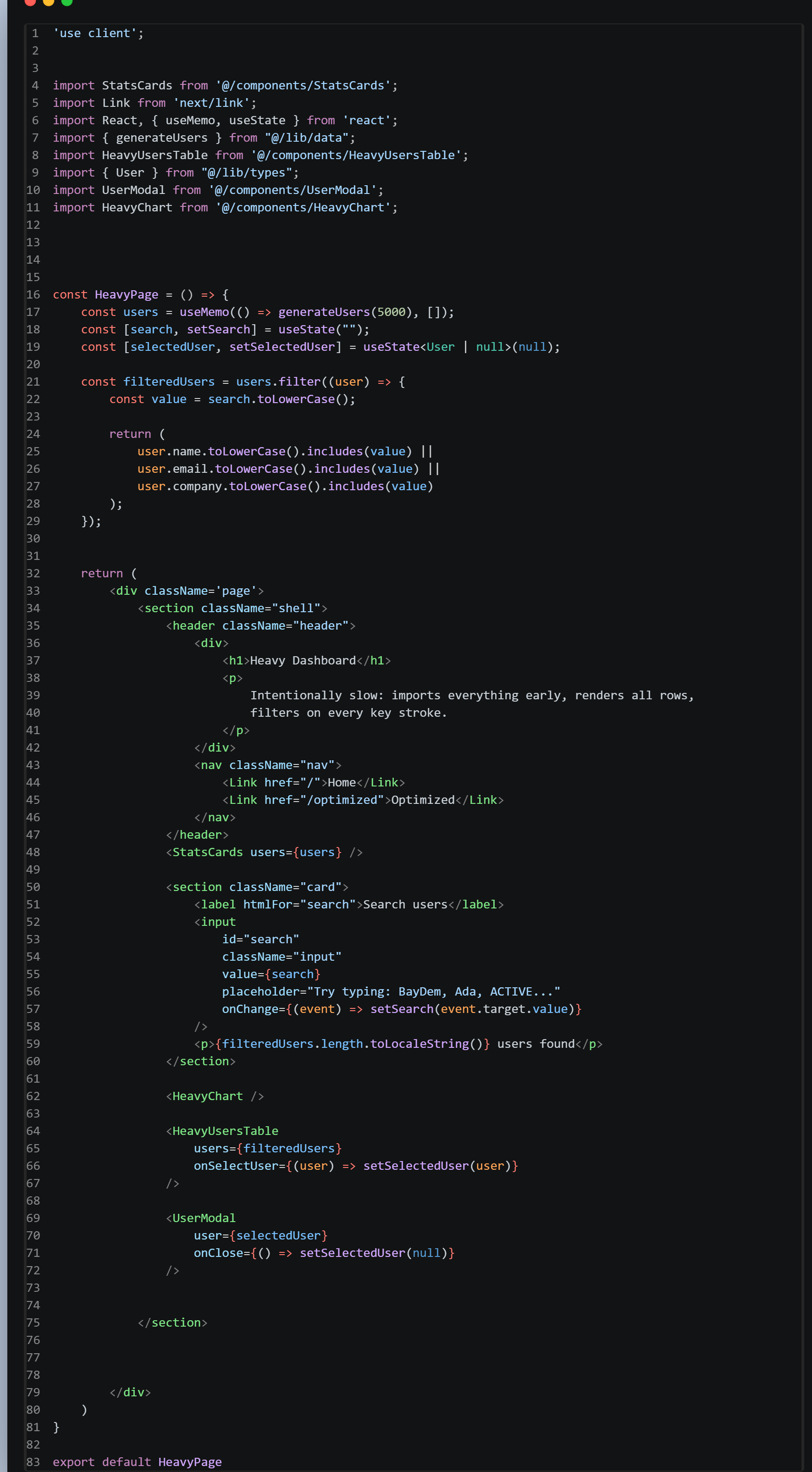
The page imported the chart, table, stats cards, and modal directly. That means most of the page’s expensive UI was included upfront.
The main problems were:
-
Everything loaded immediately
- Chart components
- Recharts
- Table code
- Modal code
- Dashboard calculations
-
Expensive work happened during render
- Filtering users
- Calculating scores
- Rendering thousands of rows
-
Too many DOM nodes were created
- 5,000 users
- Multiple cells per row
- Buttons, badges, table rows, and text nodes
-
No meaningful code splitting happened
- Heavy dependencies entered the initial route bundle
- The user paid the cost before interacting with the page
The optimized version fixed these issues by following one guiding principle:
Do not load, render, or compute something until it is actually needed.
Problem 1. Heavy Table Rendering Problem
The biggest runtime issue was the users table.
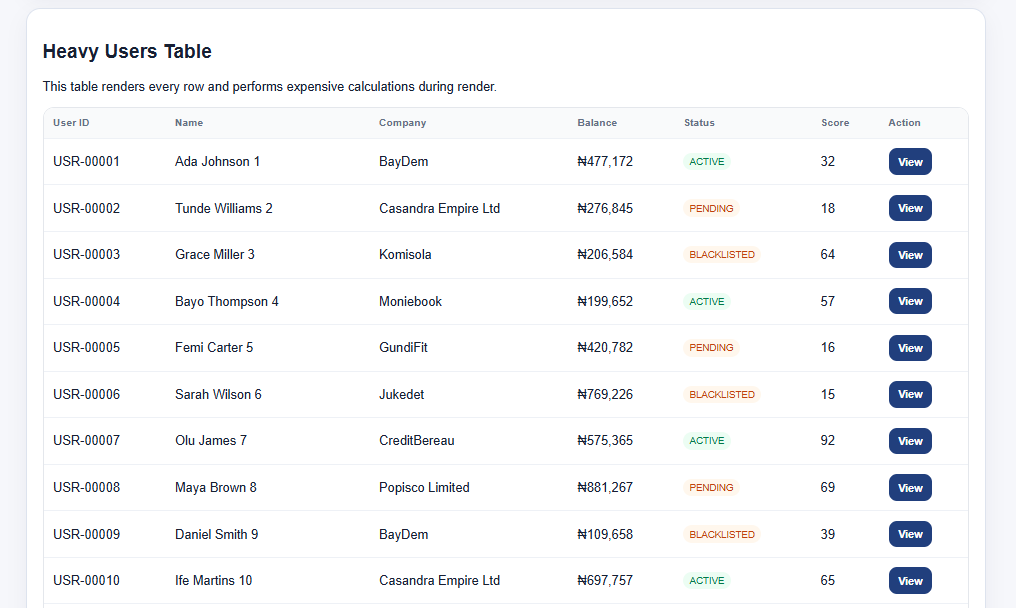 img: Table UI
The heavy table rendered every user directly into the DOM.
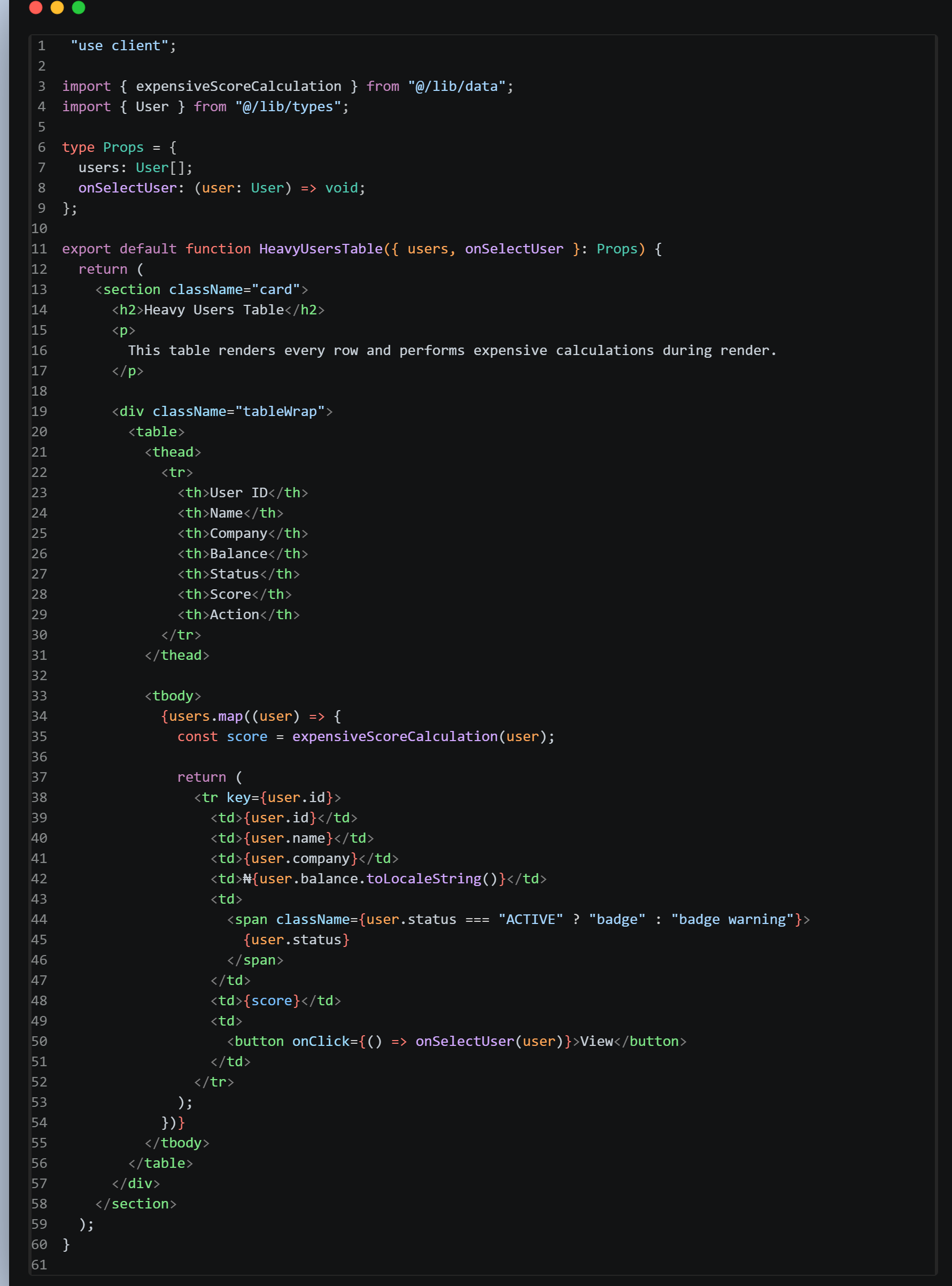
The table was used from the heavy page.tsx like this:
<HeavyUsersTable
  users={filteredUsers}
  onSelectUser={(user) => setSelectedUser(user)}
/>
At a glance, this looks normal BUT, the problem is the size of the data.
If the table receives 5,000 users(like in our case study) and each row has about 7 visible columns, the browser is not just rendering 5,000 elements.
It is closer to this:
5,000 rows × 7 columns = 35,000 table cells
That does not even include:
- table rows
- buttons
- badges
- text nodes
- event handlers
- layout calculations
- paint work
So the browser has to create, layout, paint, and manage a very large DOM tree.
This affects:
- initial rendering speed
- memory usage
- scroll performance
- re-render cost when state changes
The key issue is that the user cannot see 5,000 rows at once. The viewport may only show about 15 to 25 rows, but the heavy version still renders everything.
Solution 1. Solving Table Rendering With Virtualization
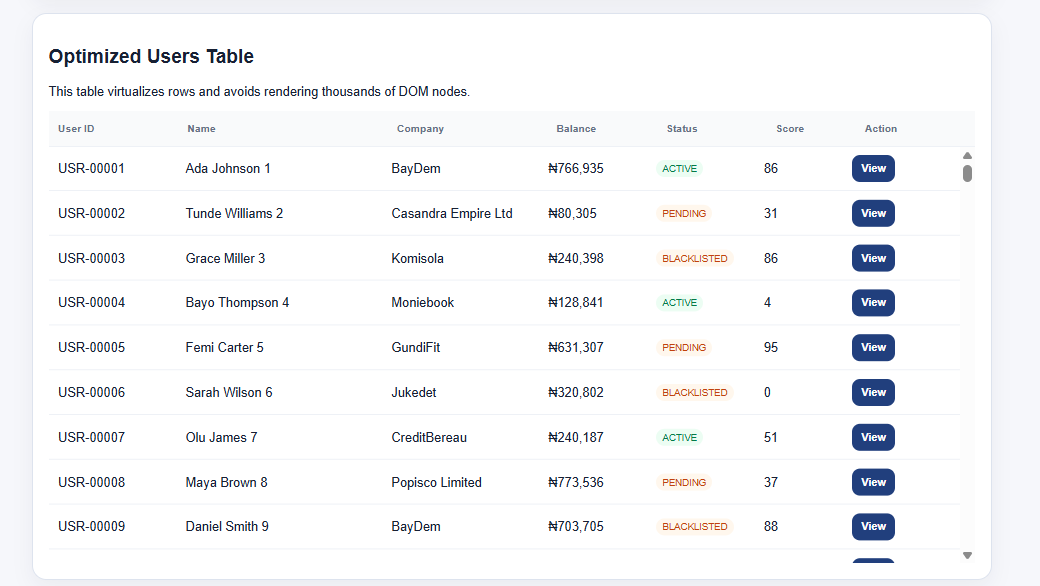
The optimized table uses react-window.
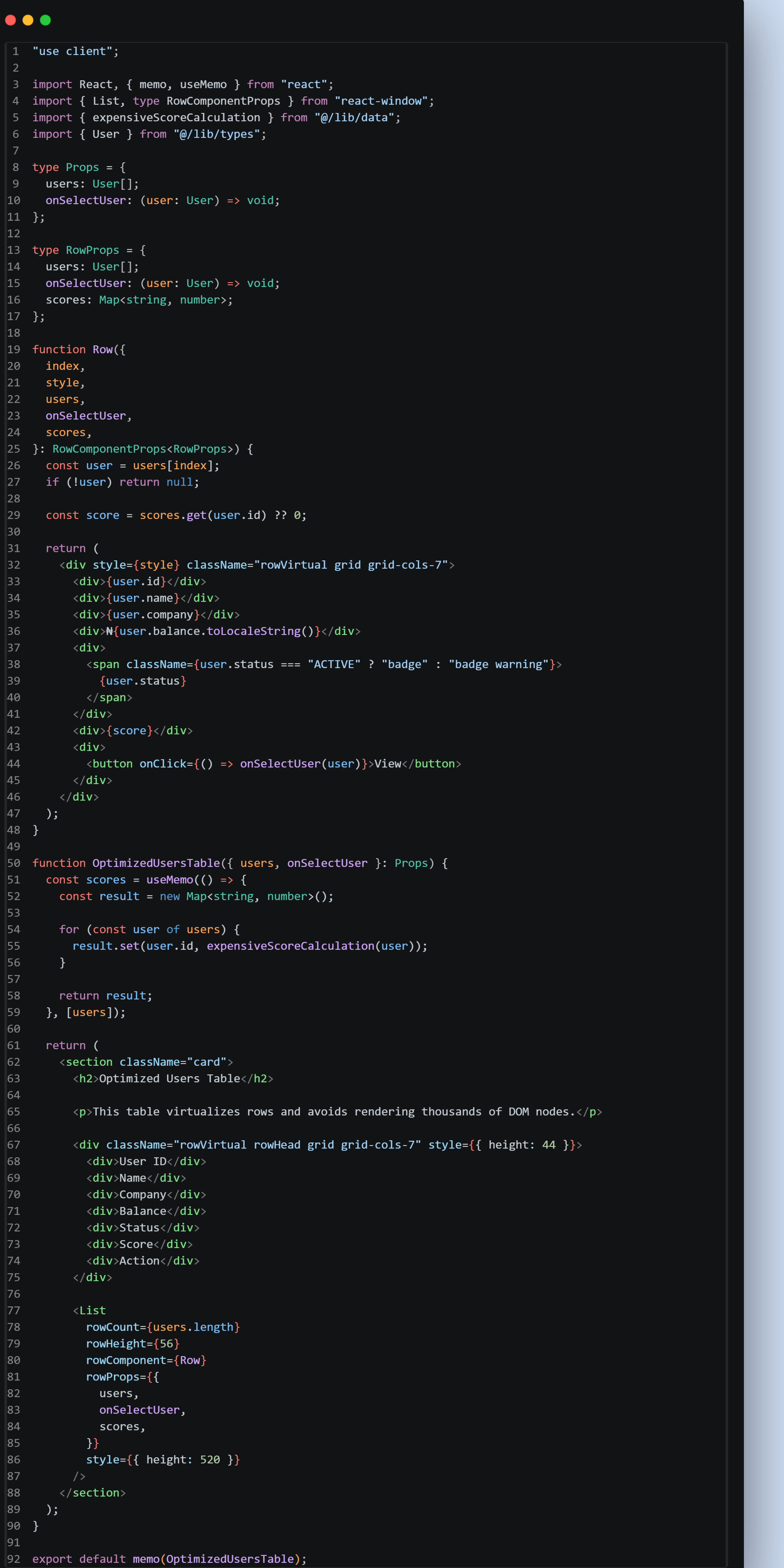
Instead of rendering every row, the optimized table renders only the visible rows inside the scrollable area.
A small excerpt from the optimized table:
<List
  rowCount={users.length}
  rowHeight={56}
  rowComponent={Row}
  rowProps={{
    users,
    onSelectUser,
    scores,
  }}
  style={{ height: 520 }}
/>
This small section is doing a lot of important work.
rowCount
rowCount={users.length}
This tells react-window how many rows exist in total.
If there are 5,000 users, react-window knows the list has 5,000 rows. But knowing that there are 5,000 rows does not mean it renders all 5,000 rows.
It uses this number to calculate the full scrollable height and decide which rows should appear as the user scrolls.
rowHeight
rowHeight={56}
This tells react-window the height of each row.
Because each row has a fixed height, react-window can quickly calculate which row index should be visible at any scroll position.
For example, if each row is 56px tall and the user scrolls down, the library can determine which indexes should be mounted without rendering the entire list.
rowComponent
rowComponent={Row}
This tells react-window which component should be used to render each visible row.
The Row component receives the row index, the positioning style, and the row props.
rowProps
rowProps={{
  users,
  onSelectUser,
  scores,
}}
This passes extra data to the row component.
The row needs:
- the
usersarray, so it can find the current user by index onSelectUser, so the View button can open the selected userscores, so it can display the precomputed score
style
style={{ height: 520 }}
This gives the virtualized list a visible height.
This is very important. Without a fixed list height, react-window cannot know the viewport area it is working with.
The list height helps it determine how many rows should be visible at once.
Row positioning
Inside the row component, the style from react-window must be applied:
<div style={style} className="rowVirtual grid grid-cols-7">
This style object contains positioning information calculated by react-window.
If this style is not applied, the virtualized layout will not work correctly.
Table rendering impact
 Before                              |  After
 ----------------------------------  | ------------------
 Render all rows                     | Render only visible rows
 Create thousands of DOM nodes       | Keep the DOM small
 Calculate layout for the full table | Improve scroll and render performance
This was one of the most important runtime optimizations.
Problem 2. Expensive Calculation Inside the Table
The heavy table had another problem: score calculation happened inside the render loop.
In the heavy table image, See reference: Heavy Main Page, the row rendering logic includes score calculation for each user.
The important line is:
const score = expensiveScoreCalculation(user);
This line was inside the .map() loop.
That means every time the table rendered, the score calculation ran again for every rendered user.
In the heavy version, since every row was rendered, this could mean thousands of expensive calculations during a single render cycle.
That is a bad pattern because React render should be as cheap as possible.
Rendering should mainly describe what the UI should look like. It should not repeatedly perform expensive calculations when the result can be reused.
Solution 2. Solving Expensive Calculation With useMemo
The optimized table precomputes scores with useMemo.
This logic is visible in the optimized table image.
The key excerpt is:
const scores = useMemo(() => {
  const result = new Map<string, number>();

  for (const user of users) {
    result.set(user.id, expensiveScoreCalculation(user));
  }

  return result;
}, [users]);
Then the row reads from the map:
const score = scores.get(user.id) ?? 0;
This changes the cost model.
The expensive score calculation no longer happens repeatedly inside every row render.
Instead, scores are calculated once when the users array changes, then stored in a Map.
Why a Map?
A Map works well here because each score belongs to a specific user ID.
result.set(user.id, expensiveScoreCalculation(user));
This stores the score using the user ID as the key.
Later:
scores.get(user.id)
This retrieves the already-calculated score for that user.
Why useMemo helps
The dependency array is important:
}, [users]);
This means:
Recalculate the scores only when
userschanges.
So opening a modal, closing a modal, toggling the chart, or changing unrelated UI state does not force all scores to be recalculated.
Score calculation impact
|           Before                   |           After
| ---------------------------------- | -------------------------------------- |
| Calculate score during row render  | Precompute scores when users change    |
| Repeat expensive work on re-render | Reuse cached score values              |
| Render becomes heavier             | Render becomes cheaper and predictable |
Problem 3. Filtering Problem in the Heavy Page
The heavy page (See reference): Heavy Main Page filtered users directly during render.
const filteredUsers = users.filter((user) => {
  const value = search.toLowerCase();

  return (
    user.name.toLowerCase().includes(value) ||
    user.email.toLowerCase().includes(value) ||
    user.company.toLowerCase().includes(value)
  );
});
This has two major problems.
First, this runs on every render.
That means filtering can happen when:
- the user types
- the modal opens
- the modal closes
- any unrelated state changes
Second, it runs on every keystroke.
If the user types bayDem, filtering runs like this:
b
ba
bay
bayD
bayDe
bayDem
For each keystroke, the page loops through 5,000 users and performs string operations.
That means a lot of repeated work.
The input itself may feel less responsive because every keystroke triggers filtering immediately.
Solution 3. Solving Filtering With Debounce and Memoization
The Optimized page code
The optimized main page introduces a debounced search value.
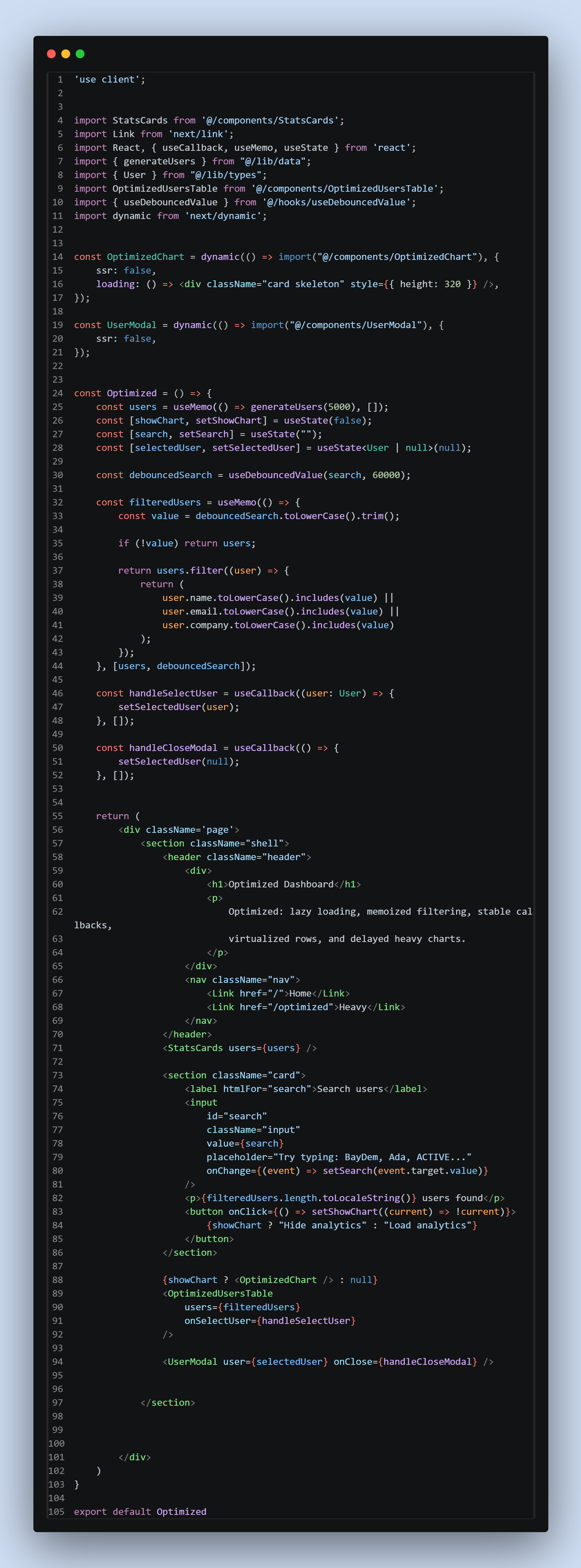
The key line is:
const debouncedSearch = useDebouncedValue(search, 300);
This separates two different concepts:
search: the immediate input valuedebouncedSearch: the delayed value used for expensive filtering
The input can update immediately while the expensive filtering waits until the user pauses typing.
A. The Debounce Hook
The debounce hook is small but important.
"use client";

import { useEffect, useState } from "react";

export function useDebouncedValue<T>(value: T, delay = 300): T {
  const [debouncedValue, setDebouncedValue] = useState(value);

  useEffect(() => {
    const timeoutId = window.setTimeout(() => {
      setDebouncedValue(value);
    }, delay);

    return () => window.clearTimeout(timeoutId);
  }, [value, delay]);

  return debouncedValue;
}
What the hook does
const [debouncedValue, setDebouncedValue] = useState(value);
This stores the delayed version of the value.
At first, it starts with the original value.
const timeoutId = window.setTimeout(() => {
  setDebouncedValue(value);
}, delay);
This waits for the delay before updating the debounced value.
In this case, the delay is 300ms.
return () => window.clearTimeout(timeoutId);
This cleanup is the most important part.
Every time the user types again, the previous timeout is cancelled.
So if the user keeps typing, the hook keeps resetting the timer. The debounced value only updates after the user stops typing for the delay period.
Why this helps
Without debounce:
Every keystroke triggers filtering
With debounce:
Typing updates input immediately
Filtering waits until typing pauses
This keeps the UI more responsive.
B. Memoized Filtering
After debounce, the optimized page also memoizes the filtering operation.
const filteredUsers = useMemo(() => {
  const value = debouncedSearch.toLowerCase().trim();

  if (!value) return users;

  return users.filter((user) => {
    return (
      user.name.toLowerCase().includes(value) ||
      user.email.toLowerCase().includes(value) ||
      user.company.toLowerCase().includes(value)
    );
  });
}, [users, debouncedSearch]);
What this code does
const value = debouncedSearch.toLowerCase().trim();
This normalizes the search term.
It converts the value to lowercase and removes extra spaces.
if (!value) return users;
If the search value is empty, the function returns the original users array immediately.
That avoids unnecessary filtering.
return users.filter(...)
Filtering only happens when there is a real search value.
}, [users, debouncedSearch]);
The filter only recalculates when either users or debouncedSearch changes.
This means opening the modal does not refilter users. Toggling the chart does not refilter users. Other unrelated state updates do not refilter users.
Filtering impact
|-----------------------------------| ----------------------------------|
| Before                            | After                             |
| --------------------------------- | ----------------------------------|
| Filter on every keystroke         | Filter after typing pauses        |
| Filter on unrelated state updates | Refilter only when search changes |
| More CPU work during interaction  | Smoother typing experience        |
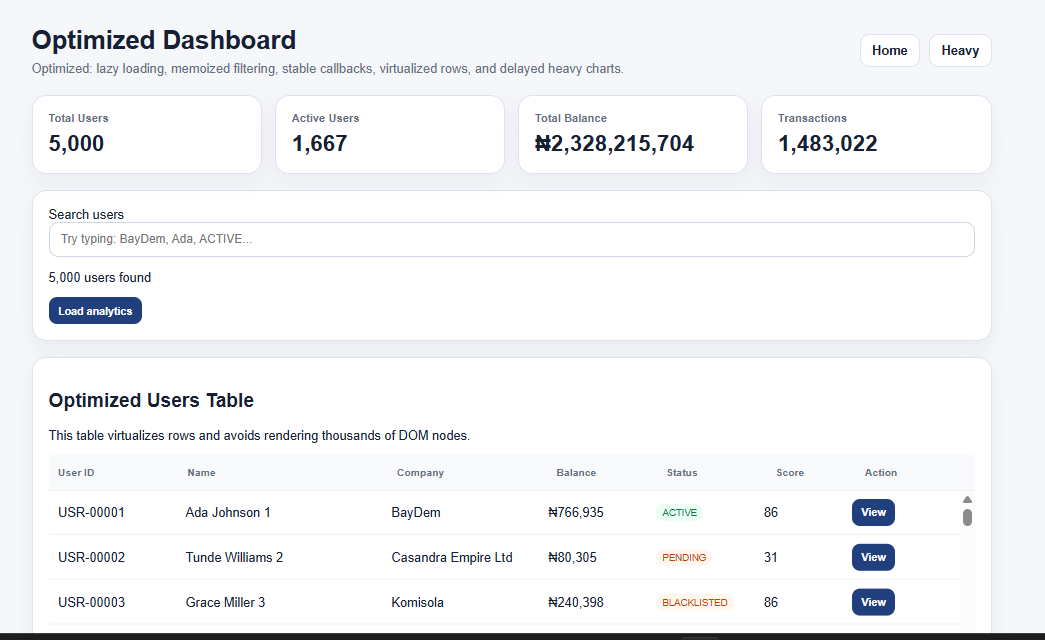 img: Full UI for optimized page
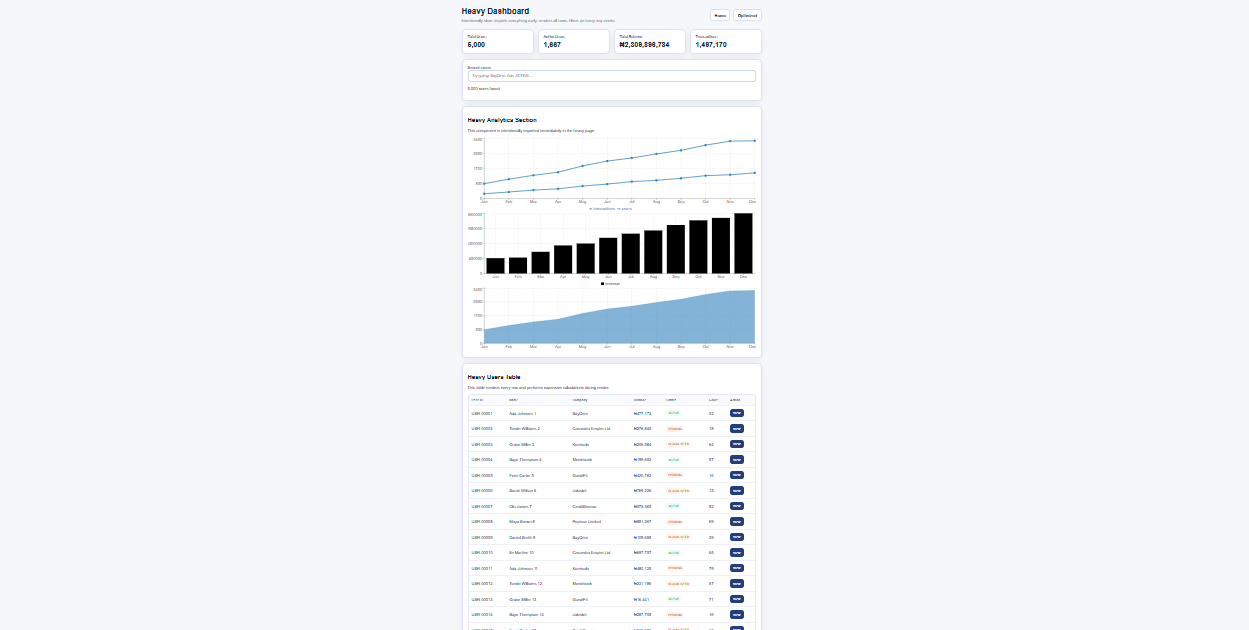 img: UI for heavy page(minimized browser to capture details)
Wheep!!!, We have come to the end of the first half of this series🥳
In this first part, I focused on the runtime problems: rendering too many rows, calculating expensive values during render, and filtering too often.
In the next part, I’ll continue with the bundle-level optimizations: stable callbacks, lazy-loaded modals, fixing Recharts layout issues, dynamic chart loading, and reducing the initial JavaScript bundle.